Showing posts with label Database. Show all posts

Monday, August 4, 2014

Generate Posts in Social Pane for Migrated Records

Hello,
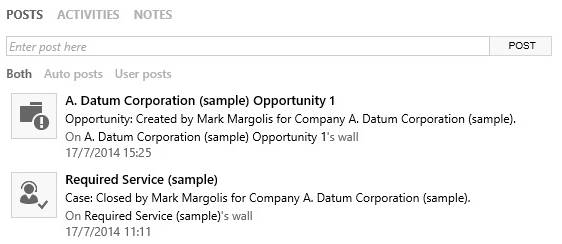
Few days back we faced very interesting issue where the Posts (as shown in below sample screenshot) were NOT getting generated for the account records which were migrated from previous version of CRM 4.0/2011 to CRM 2013. We verified that Posts were configured as expected for the account entity under "Settings -> Post Configuration" but still they were not getting generated however they were working perfectly for any new account records created directly in CRM 2013.
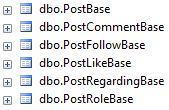
After spending multiple cups of coffee and lots of papers balls in the trash (actually it took just 20 minutes. Hahaha..!J) to figure out the problem. What I did was directly opened the CRM database and started looking for the reference tables for generating Posts. I found that below six tables were regarding Posts entity and all stuffs you see in CRM for Posts are handled through these tables (shown in below image)
From the initial symptoms of the issue which showed that Posts don’t want to get generated for Existing Migrated Records but they were happy enough to be in for newly created records in CRM 2013. This immediately kicked me to think that there must be some Mr. X (in form of some table) which is stopping the Posts to take birth. I quickly analyzed all tables affected after you create a new CRM account record in 2013 and for those which were migrated back from the previous version of CRM. This result of the analysis for the affected tables made my whole lot of hard efforts (J) fruitful.
Solution:
Above result clearly pointed out that the records for Exiting Migrated Records were missing in “PostBase” and “PostRegardingBase” (since we didn’t have any comments/follow/likes other relevant tables were empty for both types of records). Looking into the structure for both the above tables, I quickly found that “PostBase” have a foreign key column for “PostRegardingBase” and Bang On!!! We found Mr. X JJJ
Mr. X = PostRegardingBase
I quickly generated a small script for Mr. X and inserted a reference record for one of my Existing Migrated account record and tried making some legitimate changes in relation to that account which ideally should generate a Post and Guess what…
Eureka!!! Posts started getting generated for all the new eligible actions done against the Existing Migrated Account Record.
So basically in our CRM 2013 system somehow the records were missing in “PostRegardingBase” for all migrated records for the entities and we just have to “Insert” those records into this table to start Posts taking into effect for migrated records. Below table will give you mapping for the data in columns for PostRegardingBase table. Below table shows values as per Account entity record but you can change it as per your needs for other entity.
Column Name
Data to be Inserted
PostRegardingId
NewID()  “New Guid”
RegardingObjectOwningBusinessUnit
BusinessUnitId for the account record.
RegardingObjectId
AccountId (Guid) for the account record.
RegardingObjectOwnerId
OwnerId for the account.
RegardingObjectTypeCodeForSharing
ObjectTypeCode for the Account i.e. 1
RegardingObjectOwnerIdType
ObjectTypeCode for the OwnerId type. For example User or Team.
RegardingObjectIdName
Account Name – Basically name field value of the record.
RegardingObjectTypeCode
ObjectTypeCode for the Account i.e. 1
RegardingObjectIdYomiName
NULL
LatestManualPostModifiedOn
NULL
LatestAutoPostModifiedOn
GetUTCDate() – Basically Current UTC Timestamp

Hope this post helps you! Feel free to provide your valuable comments/suggestions.
Thank You. Enjoy! J
Important Note:
  • Posts will start getting generated from ongoing basis.
  • Recommendation is to take care of this table during Data Migration Planning Phase itself so that along with all migrated records, their reference records will also be pushed to PostRegardingBase table.
  • Direct database operation is not recommended by Microsoft so please do this at your own risk with all necessary backups taken and after testing in Development environment.

Wednesday, October 26, 2011

To use this saved view, you must remove criteria and columns that refer to deleted or non-searchable items

Hi,

After a long time, today I would like share one of the issue which I faced during my work with CRM 2011.
I added some new fields to my new custom entity and wanted the field level security for them. I went to Settings -> Administration -> Field Security Profiles and opened one of my existing profile. At this moment I got an error as below.

"To use this saved view, you must remove criteria and columns that refer to deleted or non-searchable items."

After searching for this error about an hour, I realized that before creating new fields of the custom entity, I have deleted another custom entity which has some of its fields having field level security enabled on them and were used in the same exiting profile which I needed for the new fields.

Solution:
Solution to this issue was really very simple. We just need to delete the fields of the deleted entity from the field level security profile.

Delete the records from FieldPermissionBase table where attribute is used (attributelogicalname) or all the fields of the deleted entity having field level security enabled.

Query to delete attributes: 

-- Replace respective entity objecttypecode with 10003 below
DELETE FROM FieldPermissionBase
where EntityName = '10003'

And finally the above error will be vanished and you are just good to go on with your work... 

Hope this solution helps you to get rid of this error and happily move on with CRM 2011. 
Feel free to post the query in case you need any aid for Dynamics CRM and this post.

Thank You !!! J

Monday, March 21, 2011

Steps to Add Deployment Administrator in MSCRM 4.0 from Database


Hello friends,

After a long busy schedule, today I want to share my one of the recent experience when I was caught in a problem which was arise by my small mistake J and then I managed to overcome to the solution.

Recently we needed import one of our CRM organizations from one deployment to other but due to some technical reasons the import got failed. Due to that failure before restarting import again, I needed to remove all the false entries which got created in MSCRM_CONFIG database during the failed import action. Within few minutes I managed to remove all the referential entries from all the tables related to the failed to import organization. 

But later on when I opened Deployment Manager, it did not allowed me to open it and responded me with below error
“Only the administrators are able to use deployment manager. you are not a deployment administrator.”
and later on I found that during the deletion of the false entries, by mistake all the entries related to deployment managers also got deleted.

After searching for couple of hours I managed to add Deployment Administrator from database and I want to share you the steps I followed to achieve the same.

Step 1: Get "systemuserid" for the user whom you want as a "Deployment Administrator" from CRM Database
Query: 
select systemuserid,fullname from systemuser where fullname like '%prathmesh%'

Step 2: Open SQL Server Management Studio and fire below query against MSCRM_CONFIG database
Query: 
SELECT Id, UserId
FROM SystemUserOrganizations
WHERE CrmUserId = <<systemuserid>> --Replace <> by the systemuserid got from step 1

Step 3: Fire Below query to get Administrator Security Role Id
Query:
SELECT Id FROM SecurityRole WHERE name = 'Administrator'

Step 4: Fire below query to Insert a record in SystemUserRoles table of MSCRM_CONFIG database
Query:
INSERT INTO SystemUserRoles
(
     [Id]
     ,[SecurityRoleId]
     ,[SystemUserId]
     ,[IsDeleted]
)
VALUES
(
     NEWID(), -- new Guid
     ,<<SecurityRoleId>>  --Replace "Id" Guid found from Step 3
     ,<<UserId>> --replace "UserId" Guid found from step 2
     ,0
)

Step 5: Add Name to SystemUser table using below query
Query:
UPDATE SystemUser
SET name  <<mydomain\username>>  -- User's domain name\username
WHERE Id = <<UserId>>  -- Replace "UserId" Guid found from step 2


Hope this post helps you jump out of a situation in which I was caught… J

Feel free to post the query in case you need help for Dynamics CRM and this post.

Monday, November 29, 2010

ExecuteNonQuery requires the command to have a transaction when the connection assigned to the command is in a pending local transaction. The Transaction property of the command has not been initialized.

Hi..

Recently I came across one wierd Error found by one of my QA friend after we imported a new CRM 4.0 organization into our development environment. The error stated something like below (Error can be tracked in the trace log files. Check out this link to find out how to enable Tracing in CRM 4.0)

"System.InvalidOperationException: ExecuteNonQuery requires the command to have a transaction when the connection assigned to the command is in a pending local transaction. The Transaction property of the command has not been initialized."


We were facing this error on all the ISV aspx pages embedded into CRM and that too was user specific i.e. for some users these ISV pages worked fine but others were facing the above error.

After loads of digging and googling around the web, i came across this link which provided the solution but this was not the case for our error.

Solution : 
       The Solution was really very simple after we found it... The issue which we were facing was due to missing Default Organization for some of the users. We just updated the Default Organization for those users and the system go up and running.

Database: MSCRM_CONFIG
Table : Organization
Query : Select Id, UniqueName From Organization
              Get the Id from the above query result (In case of Multi-Tenancy, take the id of the organization which you want as default for the particular user)


Database: MSCRM_CONFIG
Table : SystemUser
Query : Update SystemUser
              Set DefaultOrganizaionId = <>
              Where Id = <>

Updating the DefaultOrganizationIds for the users will fix the above error and you are good to go to your boss and boast of your achievement !!! J

Hope you find this solution useful. Feel free to post the query in case you need help for Dynamics CRM and this post. J

Tuesday, July 6, 2010

Exception: Too many parameters were provided in this RPC request. The maximum is 2100.

Hello Folks, 


Recently I had encountered a very interesting issue when i was working with CRM Web Service and trying to fetch the data requested by user using the Advanced Find window.

The Exception which i was faced was something weird like this :

Exception: System.Data.SqlClient.SqlException: The incoming tabular data stream (TDS) remote procedure call (RPC) protocol stream is incorrect. Too many parameters were provided in this RPC request. The maximum is 2100.

After bugging into the issue for some hours together, I found very interesting fact regarding the SQL Server. So I wanted to share this with you all.

In SQL Server, You can only have up to 2100 parameters inside IN statement in WHERE Clause.
You will get the above exception if the query similar to below is fired in SQL Server.

SELECT * FROM tablename WHERE columnname IN (1,2,3,4,5, ........ , 2101 )

Solution:
You can create new table with the values in IN statement and then JOIN your table with it. Find below example.

--Create new table
Create Table temp (myvalues uniqueidentifier)

Add all the value in IN statement of above query to the temp table above and then use this table with join to your above query as below.

-- Join new table with your table
SELECT t1.*
FROM tablename t1
JOIN temp t2 ON t1.myvalues = t2.myvalues

Hope you find this post useful. J